
The feed
The feed is a list of cards, one per item. It draws from the cards saved by each item’s last run, so it appears instantly and never waits for the network.
Reading a card
Section titled “Reading a card”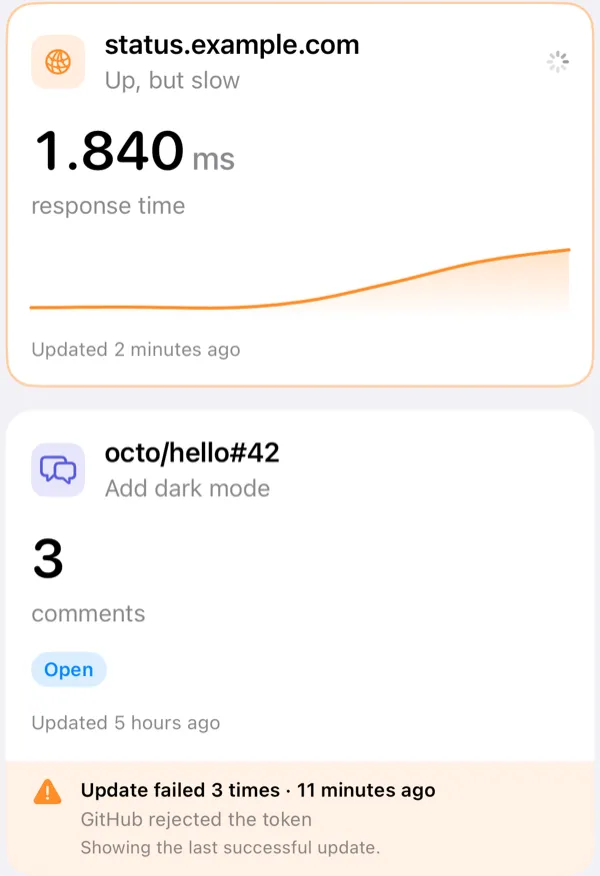
The action decides the content: a title and subtitle, a big value with a unit, label and trend, and blocks below it — a sparkline, rows of values, badges, a progress bar, a list, text. The app draws the frame around it:
| Icon and title | The action’s icon, or one the card chose. The title defaults to the item’s name. |
| Tint and dot | The card’s status: neutral, OK, info, warning or critical. |
| A blue dot | The card changed since you last opened the item. Opening its details or its link clears it. |
| Spinner | The item is running right now. |
| “Updated …” | When the last successful run finished. Dates on cards stay current by themselves. |
| Bell with a slash | The item’s notifications are muted for now. |
| Device or server name | Another device, or your server, runs this item; this one shows its card. |
Card states
Section titled “Card states”| State | What you see |
|---|---|
| Never run | A placeholder until the first run succeeds. |
| Failing | The last good card stays, with “Update failed · …”, the error and “Showing the last successful update” below it. After several failures in a row the count is shown. |
| Needs setup | A required setting is missing, for example a key that was never entered or a new setting an update added. The item doesn’t run until you fill it in. |
| Paused | The item doesn’t run on its schedule until you resume it. |
| Stale | The last successful run is more than three intervals old. |
| Server unreachable | A server item whose server couldn’t be reached. The last known card stays. |
Tapping a card
Section titled “Tapping a card”In the large layout, tapping the header (icon and title) opens the item’s details; tapping the rest of the card opens its link, if the action gave it one. In the compact layout, a tap always opens the details. Touch and hold (or right-click on the Mac) for Show Details, Update Now, Open Link, Pin to Top, Mute for 1 Day, Pause Updates, Edit… and Delete….
Large and compact
Section titled “Large and compact”Large View shows every card in full. Compact View shows one row per item — icon, title and value — for a long feed at a glance. Switch in the toolbar, or in Settings › Feed › Layout. On the Mac, Items › Toggle Compact View (⇧⌘L).
Organizing the feed
Section titled “Organizing the feed”- Pin to Top keeps an item in a Pinned group at the top. The widgets, the watch and the Mac’s menu bar item start from your pinned items too.
- Sections group items under a heading. Set an item’s Section in its settings; existing sections are suggested as you type.
- Drag a card onto another card in its group (Pinned, a section, or Other) to put it in that card’s place. On the iPhone, touch and hold the card, then move it.
- Reorder Items (under More, or the Mac’s Items menu) sets the order of the whole feed in a list.
- Search filters by name, title, subtitle, value label, section and action.
Updating
Section titled “Updating”Pull down to update every active item. Update Now updates one. Items also update by themselves; see How updates work.